How to Make an Invoice: A Step-by-Step Guide
Luki
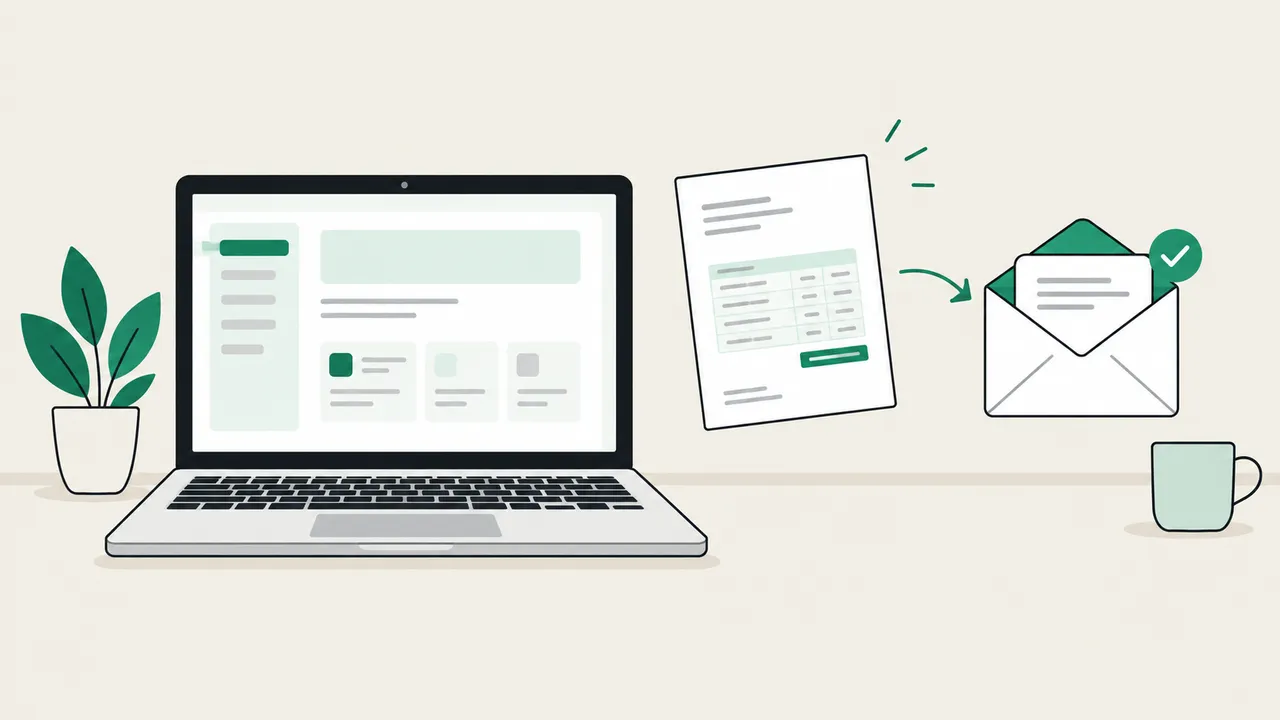
To make an invoice, put your details and your client’s at the top, add a unique invoice number and the invoice date, list each product or service with quantity, rate and amount, add any discount, tax and shipping, show the total due, and finish with the due date and how to pay. Save it as a PDF and send it.
If you only need a quick invoice right now, the homepage free invoice generator walks you through it in three steps. This guide is the long version: every decision behind a good invoice, the tools you can use and their trade-offs, a fully worked example, and what to do after you hit send.
I make Invoiceize, and the advice below comes from building an invoice tool and watching where people get stuck: numbering, tax lines, payment terms and follow-ups, not the layout.
What you need before you start
Gather these first and the invoice takes minutes:
- Your details: business name (or your own name if you are a sole proprietor), address, email, and your tax or VAT number if you are registered.
- Your client’s details: their legal or company name, billing address, and the person or department who approves invoices. Ask whether they need a purchase order (PO) number on it.
- What you delivered: hours, units, milestones or fixed fees, with dates if they matter.
- The agreed price and terms: the rate or quote you agreed, any deposit already paid, and when payment is due.
- How you want to be paid: bank transfer details, a PayPal address, or a card payment link.
If you are not sure what belongs on an invoice at all, read what an invoice is and what goes on one first.
How to make an invoice, step by step
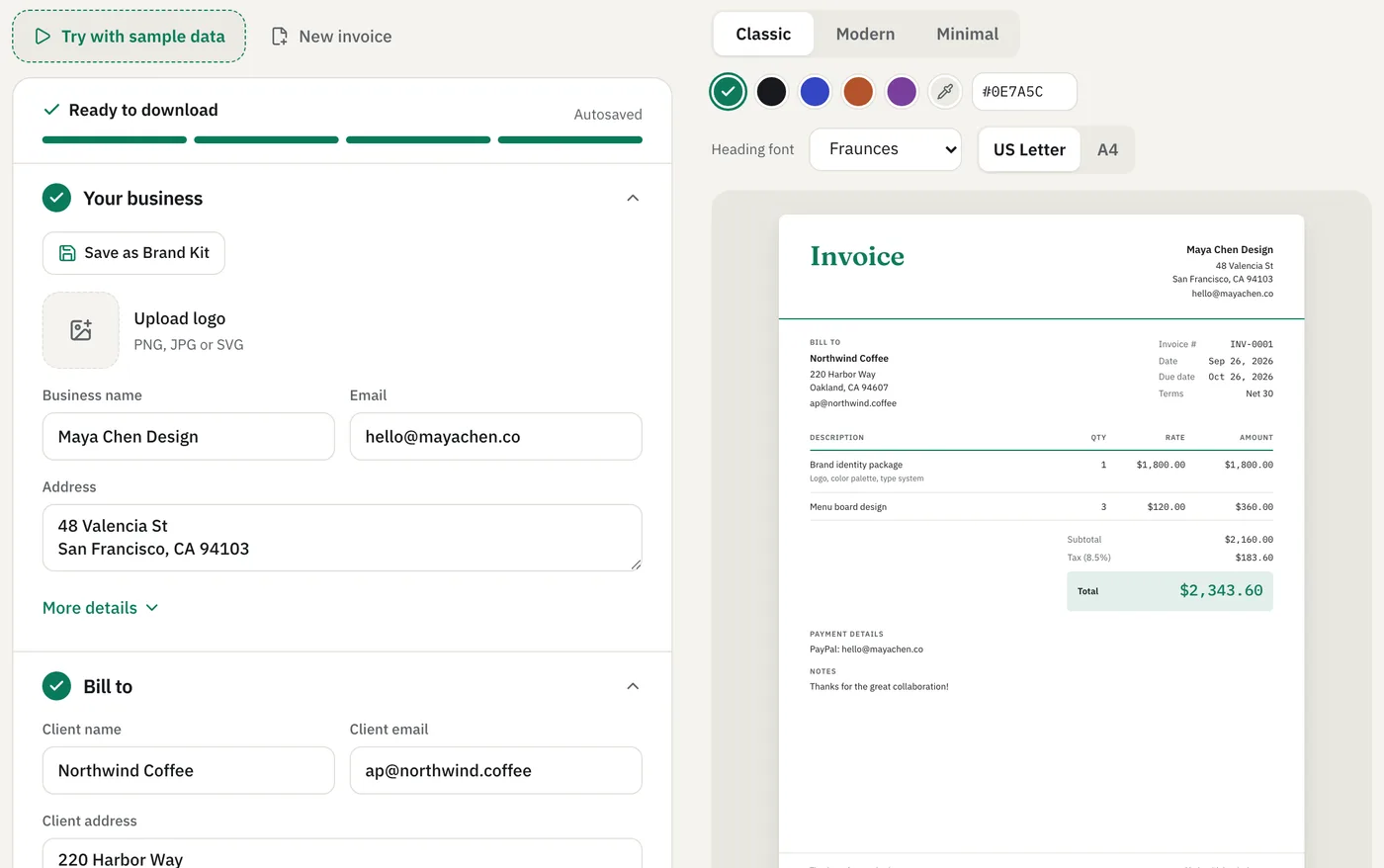
A real screenshot of the Invoiceize editor with sample data. The steps below apply whichever tool you use.
Step 1: Add your business details and logo
Put your name or business name, address and contact email at the top. Add your logo if you have one; a branded invoice looks more established and is easier for the client to recognize in an inbox full of PDFs. If you are registered for sales tax, VAT or GST, include your registration number here.
In Invoiceize you can save these details, your logo and brand color once in the Brand Kit so every new invoice starts with them filled in.
Step 2: Add who you are billing
Under a “Bill to” heading, write the client’s name or company name exactly as they want it on their books, plus their billing address. For businesses, add the name of the person or team who handles invoices (“Attn: Accounts Payable”). An invoice addressed to the wrong entity is one of the most common reasons it gets returned unpaid.
If goods are delivered somewhere else, add a separate “Ship to” address.
Step 3: Give it an invoice number
Every invoice needs a unique number. It is how you and your client refer to it, and how your records show that nothing is missing. See how to number invoices below for schemes that work.
Step 4: Set the invoice date, due date and terms
The invoice date is the day you issue it. The due date is when you expect payment. Payment terms describe the gap between them:
- Due on receipt: pay immediately. Common for small, one-off jobs.
- Net 15 / Net 30 / Net 60: pay within 15, 30 or 60 days of the invoice date. Net 30 is the most common for business clients.
- 2/10 Net 30: a 2% discount if paid within 10 days, otherwise the full amount within 30.
Write the actual due date, not just “Net 30”. “Due October 26, 2026” leaves nothing to interpret. If your client has its own payment terms in your contract, use those.
Step 5: List what you are charging for
Use one line per product or service, with four columns: description, quantity, rate and amount. Good descriptions are specific enough that someone who was not in the project understands them:
- Vague: “Design work”
- Clear: “Homepage and pricing page design, 2 rounds of revisions”
For hourly work, show hours as the quantity and your hourly rate as the rate, and group lines by week or task. For contractors, list labor and materials on separate lines. The hourly and contractor templates are set up this way.
Step 6: Add discounts, tax and shipping
Below the line items, show the subtotal, then each adjustment on its own line:
- Discount: as a percentage or a fixed amount, applied to the subtotal.
- Tax: the name and rate of each tax (for example “Sales tax 8.25%” or “VAT 20%”), usually calculated on the amount after discount.
- Shipping: delivery or postage costs, if any.
Whether you must charge tax, and on what, depends on where you and your client are and what you sell. If you are not registered for sales tax or VAT, do not add it. When in doubt, ask an accountant or check your tax authority’s website.
Step 7: Show the total and balance due
The total is subtotal minus discount plus tax plus shipping. If the client has already paid a deposit or part of the invoice, show that as “Amount paid” and state the remaining balance due clearly. Always state the currency, especially for international clients; ”$” alone can mean US, Canadian or Australian dollars.
Step 8: Add payment details and notes
Tell the client exactly how to pay: bank name, account name and number (or IBAN and SWIFT/BIC for international transfers), a PayPal address, or a payment link. Add a short note if useful, such as a thank-you, a late-fee policy or a reference to quote on the payment.
Step 9: Check it, save as PDF, and send
Run through the checklist below, then export a PDF. A PDF looks the same on every device and cannot be edited by accident, unlike a Word or spreadsheet file. Name the file clearly, such as INV-0042-Harbor-and-Hops.pdf, and email it to the person who approves payments.
How should you number invoices?
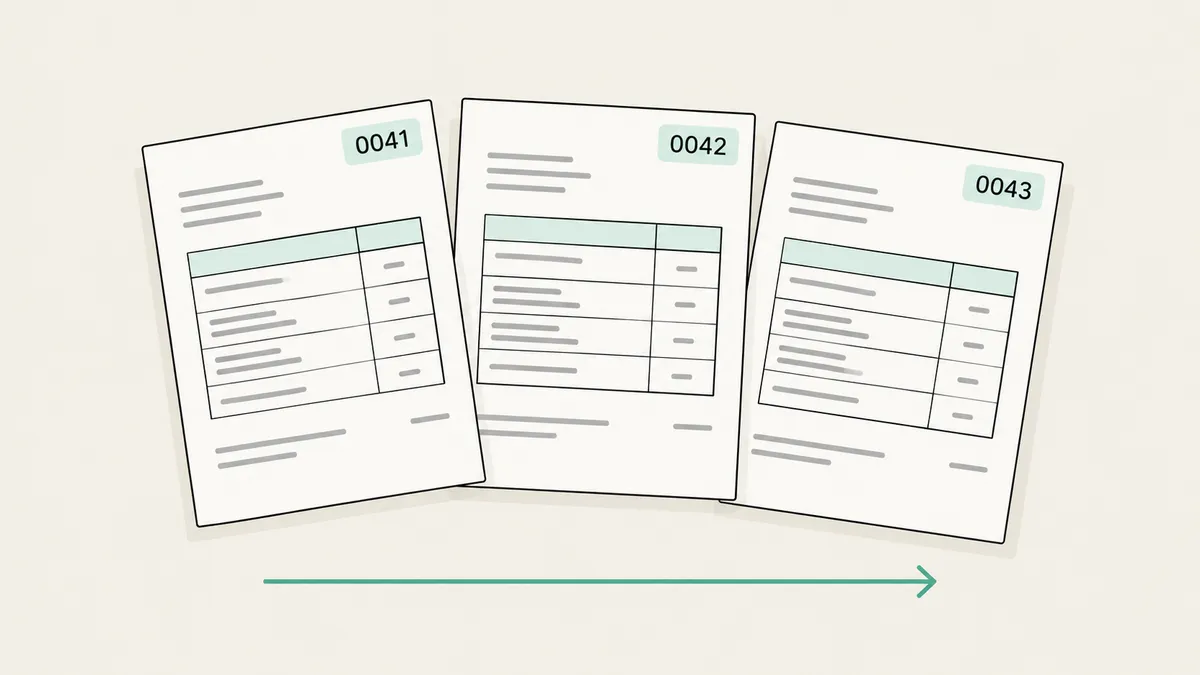
Invoice numbers only have to be unique and consistent, but some schemes are easier to live with than others:
| Scheme | Example | Good for |
|---|---|---|
| Simple sequence | INV-0001, INV-0002 | Most freelancers and small businesses |
| Year + sequence | 2026-001, 2026-002 | Seeing the year at a glance; restart each year |
| Client code + sequence | ACME-001, ACME-002 | Many invoices to a few clients |
| Date-based | 20260926-01 | Several invoices a day |
A few rules that save trouble later:
- Never reuse or skip numbers on purpose. Gaps and duplicates are exactly what an auditor looks for. In the EU, VAT invoices must carry a unique sequential number.
- Do not delete a sent invoice. If it was wrong, issue a credit note that cancels it and a new invoice with the next number.
- Pad with zeros (0001 rather than 1) so invoices sort correctly in folders and spreadsheets.
- Starting at 0001 is fine. Some people start higher to look established. That is allowed, but consistency matters more than the starting point.
Invoiceize suggests the next number for you by counting up from your last invoice, so INV-0009 is followed by INV-0010, and 2026-099 by 2026-100.
What is the best way to make an invoice?
There are five realistic options. None is best for everyone; it depends on how many invoices you send and what else you need.
| Method | Cost | Best for | Pros | Cons |
|---|---|---|---|---|
| Word or Google Docs | Free or already owned | Occasional invoices with fixed text | Familiar; full control of layout | Manual math; easy to forget to update the number or date; files can be edited after sending |
| Excel or Google Sheets | Free or already owned | People comfortable with formulas | Formulas can total lines and tax; easy to keep a log | Layout breaks easily; formulas get overwritten; exporting a clean PDF takes care |
| Free online invoice generator | Free | Freelancers and small businesses sending a few invoices a month | Fast; totals and tax calculated; clean PDF; no setup | Fewer bookkeeping features; check where your data is stored |
| Accounting software (QuickBooks, Xero, FreshBooks and others) | Usually a monthly subscription, some have free plans | Businesses that need bookkeeping, payment tracking and reminders | Tracks paid and unpaid invoices; reminders; online payments; reports for tax time | Costs money; setup and learning time; more than you need for a few invoices |
| Payment platforms (PayPal, Square, Stripe) | Free to send; fees when a client pays | Getting paid by card or PayPal quickly | Client pays directly from the invoice | Processing fees on each payment; invoice design and fields are limited |
To be clear about the tool I make: Invoiceize is in the third row. It is free, needs no account, calculates totals, tax, discount and shipping, and downloads a PDF with no watermark. Your invoices are stored in your own browser rather than on our servers, which is private but means they do not sync to another device. It does not send payment reminders or process payments. If you need those, accounting software is the better fit.
How to make an invoice in Word or Google Docs
Open a new document or one of the built-in invoice templates (both Word and Google Docs have a template gallery). Replace the placeholder text with your details, add a table for line items, and calculate the totals yourself or with a calculator. Double-check the invoice number and dates every time you reuse the file, then download or export it as a PDF.
How to make an invoice in Excel or Google Sheets
Set up columns for description, quantity, rate and amount, and use a formula such as =B2*C2 for each line amount and =SUM(D2:D10) for the subtotal. Add rows for discount, tax (for example =D11*0.0825) and the total. Lock or protect the formula cells so they are not overwritten, and export the finished invoice as a PDF.
How to make an invoice with a template
A template gives you the layout; you fill in the content. The invoice templates page has layouts for freelancers, consultants, hourly work, contractors and a blank invoice. Each one opens in the generator with sample details that you replace with your own.
Worked example: an invoice with discount, tax and shipping
A photographer billing a client for an event shoot, with a 10% returning-client discount, sales tax and a shipped print album:
| Description | Qty | Rate | Amount |
|---|---|---|---|
| Event photography (hours) | 4 | $150.00 | $600.00 |
| Photo editing (images) | 25 | $12.00 | $300.00 |
| Printed album, 10 x 10 in | 1 | $180.00 | $180.00 |
| Subtotal | $1,080.00 | ||
| Discount (10%) | −$108.00 | ||
| Sales tax (8.25%) | $80.19 | ||
| Shipping | $15.00 | ||
| Total due | $1,067.19 |
The math, step by step:
- Line amounts: 4 × $150.00 = $600.00; 25 × $12.00 = $300.00; 1 × $180.00 = $180.00.
- Subtotal: $600.00 + $300.00 + $180.00 = $1,080.00.
- Discount: 10% of $1,080.00 = $108.00, leaving $972.00.
- Tax on the discounted amount: 8.25% of $972.00 = $80.19.
- Total: $972.00 + $80.19 + $15.00 shipping = $1,067.19.
Tax is calculated here after the discount and without shipping, which is common, but rules differ. Some places tax shipping, and some tax only goods and not services. The rate and what it applies to are illustrations; use the rules that apply to you.
In the invoice generator, you enter the discount, tax rate and shipping once and it does this calculation in the same order: discount, then tax on the discounted amount, then shipping.
Invoice checklist
Before you send, check:
- Invoice number is unique and next in your sequence
- Invoice date and a specific due date are shown
- Client name, company and billing address are correct, with PO number if required
- Every line has a clear description, quantity, rate and amount
- Subtotal, discount, tax (with rate) and shipping add up to the total
- Deposits or earlier payments are subtracted, and the balance due is clear
- Currency is stated
- Payment details are complete: bank, PayPal or payment link
- Your tax or VAT number is included if you are registered
- File is a PDF with a clear name, sent to the person who approves payment
What to do after you send an invoice
Making the invoice is half the job. Getting paid is the other half.
- Send it the day the work is done. The longer you wait, the longer you wait to be paid.
- Write a short cover email. Something like: “Hi Sam, attached is invoice INV-0042 for the September shoot, $1,067.19, due October 26. Payment details are on the invoice. Thanks again!” State the amount and due date in the email too, so the client does not have to open the PDF to know what is owed.
- Keep a copy and a simple log. Track number, client, amount, date sent, due date and date paid. A spreadsheet is enough.
- Follow up politely. A friendly reminder a few days before the due date, then again on the day after it passes, resolves most late payments. Reference the invoice number and attach it again.
- Know your rights on late payment. In the UK, for example, businesses can claim statutory interest on late commercial payments, set at 8% plus the Bank of England base rate. Other countries have their own rules; putting a late-fee policy on the invoice makes expectations clear everywhere.
- Issue a receipt when paid. Mark the invoice as paid in your records and send a receipt if the client needs one. The receipt generator makes one from the same details.
Frequently asked questions
How do I make an invoice for free?
Use a free online invoice generator, or a template in Word, Google Docs, Excel or Google Sheets. With a generator the totals and tax are calculated for you and you can download a PDF straight away. Invoiceize is free, needs no signup and adds no watermark.
Can I make an invoice if I am not a registered business?
In most countries, yes. Sole proprietors and freelancers can invoice under their own name. Put your full name and contact details where the business name would go. If you are registered for sales tax or VAT, you must follow the extra rules for those invoices. Check your local tax authority if you are unsure.
What is the first invoice number I should use?
Any number, as long as every later invoice follows it without repeats. INV-0001 or 2026-001 are common starting points. Some businesses start at a higher number such as 1001, which is allowed. What matters is that the numbers are unique and sequential.
How do I make an invoice on my phone?
Open an online invoice generator in your phone’s browser; Invoiceize works on mobile without installing an app. Accounting apps and PayPal also have mobile apps that create invoices. Whichever you use, download or share the invoice as a PDF.
Should I send an invoice as a PDF or a Word file?
A PDF. It looks the same on every device, prints correctly, and cannot be changed by accident. Word and spreadsheet files can shift layout on another computer and can be edited, which is not what you want for a request for payment.
What should I do if I made a mistake on an invoice I already sent?
If the client has not recorded it yet, send a corrected version with a short note. If it is already in either side’s books, issue a credit note that cancels the original, then a new invoice with the next number. Do not reuse the old number or delete the original from your records.
How is an invoice different from a quote?
A quote comes before the work and tells the client what it will cost; they can accept or decline it. An invoice comes after the work (or at an agreed milestone) and asks for payment. If you need to price a job first, start with a quotation generator.
Ready to send your invoice?
Fill it in, download a PDF with no watermark. No signup needed.
Open the invoice generator